
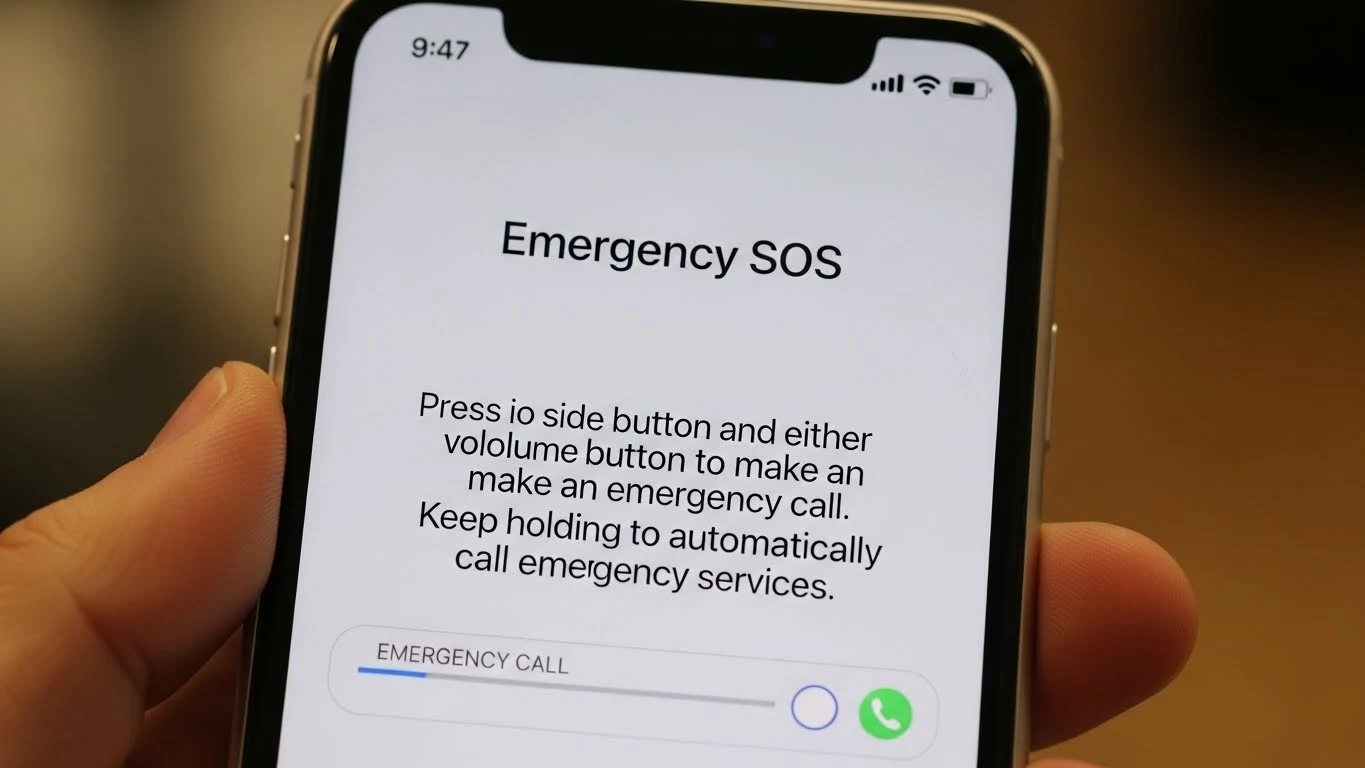
When you’re casually scrolling through TikTok, texting your friends, or checking Instagram, the last thing you want is a mysterious “SOS” symbol on your device.
It usually pops up near the signal bar or appears suddenly without warning. And if you’re like most iPhone users, your heart drops for a second “Did I break my phone? Is this an emergency? Is the network gone forever?”
Relax. The SOS icon isn’t a glitch, a virus, or a scary alert.
It’s actually a built-in protective feature from Apple that activates when your device can’t connect to your regular mobile network.
Understanding why it appears and what it can do can save you time, stress, and potentially even your life someday.
📌 Quick Answer
“SOS” on your iPhone means you don’t have normal cellular service, BUT your device can still make emergency calls or send emergency messages depending on your region.
It’s a safety function — not a threat, not a hack, not a bug.
What the SOS Symbol Really Represents
Apple isn’t playing games with this feature. “SOS” is tied directly to Emergency Services. When your mobile carrier isn’t available, the device switches into a mode that prioritizes your ability to call for help.
Think of it as a backup system:
- You lose regular signal.
- The phone finds any available network.
- That network may only support emergency traffic.
- Your iPhone allows emergency calling anyway.
You may not be able to text, browse social media, or call your friend — but you can still dial emergency services.
Why You’re Seeing the SOS Icon
There are a handful of reasons the symbol pops up. None of them are personal, dramatic, or “something is wrong with your device.” The phone is just reacting to your environment.
1. Weak or No Cellular Coverage
You may be in:
- A rural area
- A basement or underground parking
- A mountainous region
- A tunnel
- An international zone with limited roaming
In these situations, your SIM can’t connect normally. So your iPhone defaults to survival mode: emergency access only.
2. SIM Card Issues
A damaged, wet, blocked, or poorly inserted SIM can mess with network availability:
- SIM tray not fully inserted
- Dirt or moisture on contacts
- Old or unsupported SIM
- Recently swapped SIM that didn’t activate
3. Carrier Problems or Outages
Sometimes it isn’t you — it’s the telecom provider.
Network maintenance, storms, infrastructure failures, or regional disruptions can trigger SOS mode across entire communities.
4. Wrong Settings or Updates
A simple toggle or update can break your signal temporarily:
- Airplane mode glitch
- Data roaming off while abroad
- Cellular settings reset
- Software update bugs
Good news: most of these are reversible in minutes.
Not All Regions Show “SOS”
Some iPhones display other messages or symbols:
- “No service”
- “SOS Only”
- “Emergency calls”
- A blank signal bar
These all mean basically the same thing: You’re offline except for emergencies.
The exact wording depends on region, carrier partnerships, and localization settings.
What You Can Still Do in SOS Mode
Even when you feel disconnected, you’re not helpless. The emergency framework is designed to keep essential safety services available.
You Can:
- Call emergency assistance (like 911 or 112)
- Use satellite emergency features (on compatible models)
- Access local emergency phone routing
- Share emergency location via some protocols
You Cannot:
- Make normal calls
- Send regular texts
- Browse the internet
- Use mobile data apps
Think of SOS mode like a fire exit — you’re not meant to use it every day, but it’s there when you truly need it.
Apple’s SOS Emergency Features Explained
Apple has gradually expanded how “SOS” works beyond just a symbol.
🚑 Emergency SOS (Button Trigger)
When you:
- Press and hold Power + Volume OR
- Quickly tap the power button five times
Your iPhone will:
- Autodial emergency services in your region
- Send your location to selected contacts
- Alert authorities appropriately
This isn’t random — it’s a refined system that’s been around for years.
🛰️ Emergency SOS via Satellite
On newer devices (starting from iPhone 14 series), Apple introduced a wild feature:
- If you’re totally off-grid
- No Wi-Fi
- No cellular
- No towers anywhere
You can still contact emergency services using satellite connectivity.
It requires pointing your phone at the sky, following on-screen prompts, and waiting for a connection.
This has already saved hikers, travelers, and people involved in remote accidents.
Common Scenarios When SOS Shows Up
Here’s how it plays out in the real world:
Hiking in Mountains
- You leave the city signal
- Your carrier can’t connect
- Your phone switches to SOS mode
- You still have emergency dialing
Airplane Landed, No SIM Sync
After landing from a flight:
- Towers may not recognize your SIM yet
- Roaming settings off
- Your phone says “SOS”
Turn on roaming, restart, or wait a few minutes.
Underground Parking or Metro
- Thick concrete blocks signal
- No normal network access
- Your phone enters emergency-only mode
How to Fix the SOS Symbol
Sometimes you just want your bars back. Here are some clean solutions.
1. Toggle Airplane Mode
Simple. Fast. Effective.
- Open Control Center
- Tap Airplane mode ON
- Wait 10 seconds
- Turn OFF
This forces reconnection.
2. Restart the Phone
If your iPhone hasn’t been rebooted in a long time, network modules get glitchy.
- Hold power + volume
- Slide to shut down
- Restart
3. Check SIM
Remove the tray gently:
- Clean it
- Reseat it
- Make sure it clips properly
If it still fails: try another SIM or contact your carrier.
4. Enable Data/Roaming
When traveling internationally:
- Go to Settings > Cellular > Data
- Turn on “Data Roaming”
- Check “Network Selection”
5. Network Reset
If nothing else works:
- Settings
- General
- Reset
- Reset Network Settings
You won’t lose photos or apps — only saved Wi-Fi and phone connection settings.
Can SOS Mode Drain Battery?
A lot of people notice quick battery dips — here’s why:
- iPhone constantly hunts for network
- Radio antennas work harder
- GPS is activated during emergency systems
So yes, battery usage may spike in regions with poor connectivity.
Pro tip:
If you’re stuck somewhere with no service for hours, use Airplane mode to preserve battery, and only disable it periodically to check for coverage.
Does SOS Mean Someone Is Tracking Me?
Short answer: No.
SOS has zero relation to spying, monitoring, or hacking.
It’s purely a defensive communication layer.
If someone is stalking, tapping, or monitoring you digitally, it won’t show as SOS. That’s a different conversation entirely involving permissions, malware, social engineering, Bluetooth leaks, etc.
SOS is literally your phone saying: “Hey, I can’t find normal signal, but I can still help you if you’re in trouble.”
SOS vs SOS Only — They Are Not Identical
Many users see slight wording differences.
SOS
You’re outside your carrier’s network, but emergency is still possible.
SOS Only
You might technically be inside a network range, but your carrier doesn’t allow full use because of:
- Roaming blocks
- Account issues
- SIM deactivation
- Unpaid bill
- Carrier switching
SOS Only is kind of like “You’re connected, but not to your provider.”
What if SOS Never Goes Away?
If you leave a tunnel, reach a city, or step outside and the symbol stays stuck — something deeper is happening.
Possibilities:
- Old carrier profile
- Incorrect cellular bands
- Tower trouble
- iOS bug
- Hardware antenna failure
Before panicking:
Try:
- Turning off 5G temporarily
- Switching network mode
- Updating your system
If still stuck:
Call your carrier support or visit an Apple Authorized Service Center.
The Psychological Effect of Seeing SOS
We don’t talk about this much, but it matters.
iPhones are anxiety amplifiers:
- Red badges ✔️
- Lock warnings ✔️
- Charging alerts ✔️
So when the phone says SOS? Your brain goes:
“Emergency. Panic.”
But the truth is: the phone is doing the exact opposite of panicking — it’s preparing for emergency use just in case.
It’s peace of mind disguised as a warning.
Pro Tips to Avoid SOS Situations
You can’t control geography or tower outages, but you can limit how often you get stuck.
- Keep roaming enabled when traveling.
- Don’t use cheap or outdated SIM cards.
- Update iOS regularly.
- Don’t ignore carrier updates.
- Avoid weak third-party eSIM providers.
- Use Wi-Fi calling where available.
- Carry a power bank outdoors.
- Learn how satellite SOS works before you need it.
The Bigger Picture
SOS isn’t just a status icon — it’s a safety net that connects convenience to survival.
- Social media is fun
- Selfies are fun
- FaceTime is fun
But Apple knows real life is unpredictable.
A car accident. A fall on a trail. A lost hike. A medical emergency.
Those are moments when ultra-fast, non-carrier communication can save someone.
And that’s why this feature exists.
Final Thoughts
The symbol isn’t something to fear. It’s not a sign of a broken device or an invisible threat. It’s a smart fallback system that prioritizes human life over digital convenience.
Whenever it appears, stay calm, check your surroundings, and remember: you still have the ability to call for help.
Technology, for once, is trying to protect you not stress you out.
